
 Installation must be carried out by a competent person in accordance with BS 7671 and applicable UK regulations.
Overview
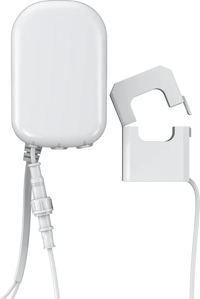
The energy meter reports electricity usage via a Switchee, and can be used to measure the electricity usage of a particular appliance such as a heat pump (by clamping the electricity wires that supply power to the appliance being measured) or the overall home electricity usage (by clamping the main electricity supply wiring, between the meter and the fuse box - but only if the clamp is suitably rated for the expected current flow).
The meter reports:
- Power (Watts) - the instantaneous electricity usage
- Energy (kWh) - the cumulative electricity usage over time
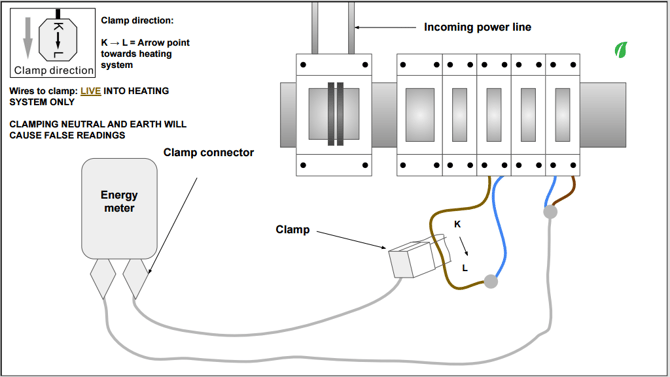
Wiring diagram
The Aeotec Home Energy Meter Gen5 is mains powered and will need to be wired to a fused spur, or will need an appropriately fused mains plug adding (so requires an electrician to complete the physical installation).
Installation
Once wired for power:
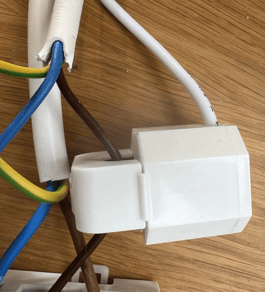
- Clamp the sensor around the live wire where electricity usage should be monitored.
- Ensure that the wire you are clamping will not exceed the maximum current of the clamp you have purchased (clamps are typically max 60A or 100A).
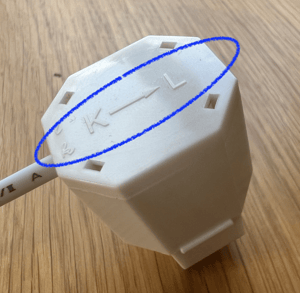
- Ensure that the “K→L” arrow on the clamp points from incoming power (K) and towards the device or circuit whose consumption you want to measure (L).
Pairing to the Switchee
- Access the Z-wave pairing menu on the Switchee via:
- Tap on the Spanner (top left)
- Next x2
- Admin (Pin is 0123)
- Z-Wave Sensors
- Select ‘Pair/Unpair Sensors’
- Select ‘Pair new sensor’. This puts the Switchee into pairing mode for 2 minutes.
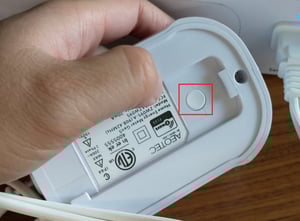
- Press the button on the back of the meter once. Remove the bracket to access the button. If it has been successfully linked to your network, the red LED will remain illuminated. If the linking was unsuccessful, the red LED will continue to blink. Once paired, the Switchee will indicate that a new device has been included/added.
- The Switchee will then ask you to select a location of the sensor. E.g. Master Bedroom.
- The Switchee will then ask you to select a purpose. This is what appliance the clamp is measuring. E.g. Air Source Heat Pump.
- To verify successful pairing, select ‘Sensor Readings’ and wait a few minutes for the sensor data to populate.
Unpairing from the Switchee
- Access the Z-wave pairing menu on the Switchee via:
- Tap on the Spanner (top left)
- Next x2
- Admin (Pin is 0123)
- Z-Wave Sensors
- Select ‘Pair/Unpair Sensors’
- Select ‘Unpair existing sensor’. This puts the Switchee into unpairing mode for 2 minutes.
- Press the button on the back of the meter once. Once unpaired, the Switchee will indicate that a new device has been removed/excluded.
Viewing readings
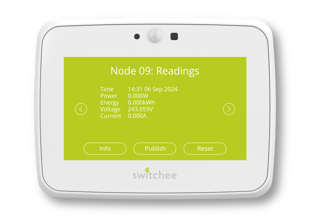 To view readings, access the Z-wave pairing menu on the Switchee via:
- Tap on the Spanner (top left)
- Next x2
- Admin (Pin is 0123)
- Select ‘Z-Wave Sensors’
- Select ‘Sensor Readings’
This menu provides the sensor’s key information, publishes readings from the sensor immediately to the cloud, and resets the sensor’s readings if there are any issues.
Select the ‘Publish’ button to instruct the device to immediately publish these readings to the cloud, and make them visible remotely from the Switchee dashboard. This may be used when discussing issues with Switchee over the phone, to ensure data is coming through correctly. When publishing readings, you will be told readings are publishing and when complete you will receive a success message.
The ‘Reset’ button is intended to be used to reset the sensors, when installation errors may have occurred or the sensor’s pairing has become corrupted. Typically, this is something that Switchee Support will guide you towards to resolve any installation issues.
There are two ways of accessing this feature. One is to do this individually for each paired sensor, the other is if you need to reset a specific sensor. This can be done by accessing the ‘Manage Sensors’ menu, finding the sensor, and pressing the ‘Reset’ button in the bottom right. You will then receive confirmation this has been reset.
Configuring the Z-wave sensor
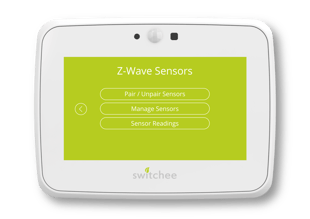 If a sensor has been re-located, had its purpose changed or inputted incorrectly it can be re-configured retrospectively. To access this menu, you can use the ‘Manage Sensors’ feature on the first page of the Z-Wave sensor menu.
Choosing ‘Manage Sensors’ to see the type of sensor, the ID (Library) number, the serial number, the location and purpose.
You will also have three options, for ‘Readings’, ‘Configure’, and ‘Warnings’. Select ‘Configure’, to change and reset the location and/or the purpose of the clamp.
Warnings tab
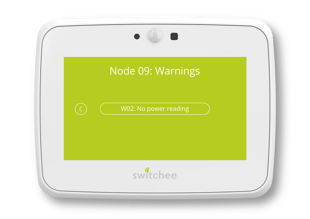
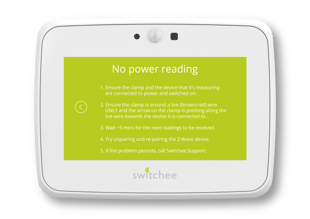
The Warnings tab will show any errors that have been caused by the installation of this sensor. When there is a [1] next to this, this shows there is an active error.
By tapping into this, you will be able to see the active warning, and by tapping the warning, you’ll be able to see how to resolve the error. You can use this to troubleshoot the device’s sensor errors immediately as they occur.
You may find that after resolving the error, you receive null readings. You must now use the ‘Reset’ button on the management page to clear these.
Factory resetting the Energy Meter
Press and hold the back button for at least 10 seconds to restore to factory setting.
For more support, contact our installer support team directly on:
Tel: 0800 133 7957 | Email: install@switchee.com
To book any further installation training with Switchee, click here