
Overview
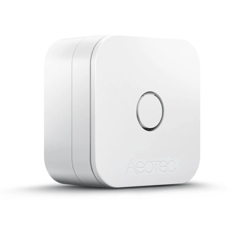 The Aeotec AerQ is a Z-Wave sensor that works with the Switchee Gen2 display, allowing temperature and humidity to be monitored in additional rooms.
It is battery powered, allowing easy installation in any room and reliable operation, without worries that a resident will unplug it.
It flashes red to alert the resident when humidity is high and there is a risk of mould growth, allowing the resident to take immediate action to ventilate the room.
Product specifications
| Specification | Range/Info |
| Battery type | CR2477 3V Lithium coin cell |
| Temperature range | -10 to 65°C (± 0.8°C) |
| Humidity range | 0 to 100% RH (±3%) |
| Dimension | 35mm x 35mm x 18mm |
| Weight | 21g |
| Installation | Wall-mounted (vertical) |
| Communication protocol | Z-wave |
Installation
- Look at the sides of the sensor and locate the two triangular arrows.
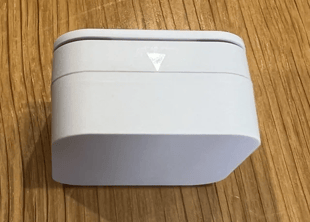
- Squeeze the arrows inwards whilst firmly pulling the back of the sensor away from the front to separate the front and back of the housing.
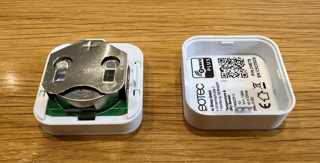
- Push the battery partly out and remove the green battery tab that sits below the battery, then slide the battery back in (with the + facing up towards you).
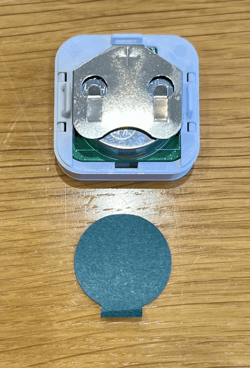
- Clip the front and back of the sensor back together, making sure to align the tooth on the back with the hole next to the battery in the front section.
Location: Where should you fit the AerQ sensor?
- In any room (including kitchens and bathrooms) but should not be positioned anywhere that it might be directly splashed with or immersed in water.
- The AerQ should be stuck to a smooth, clean, dry section of wall where the wall surface is in good condition and not crumbling or peeling.
- The AerQ should not be installed where it will be in direct sunlight (as this will skew temperature readings). It should ideally be placed on an internal wall where there will be good airflow (so not right in a corner or behind curtains or furniture)
- The AirQ must be fixed high enough up that it will be out of reach of pets and young children.
Note: The 3M sticky pad could damage paint or wallpaper when removed, and this is the responsibility of the installer.
Pairing to the Switchee
- Access the Z-wave pairing menu on the Switchee via:
- Tap on the Spanner (top left)
- Next x2
- Admin (Pin is 0123)
- Z-Wave Sensors
- Select ‘Pair/Unpair Sensors’
- Select ‘Pair new sensor’. This puts the Switchee into pairing mode for 2 minutes.
- Press the button on the front of the AerQ 3 times very quickly (within 1.5s). The red and green LEDs on the AerQ will flash a few times, then the sensor and Gen2 should pair.
- To verify successful pairing, select ‘Sensor Readings’ and wait a few minutes for the sensor data to populate.
Unpairing from the Switchee
- Access the Z-wave pairing menu on the Switchee via:
- Tap on the Spanner (top left)
- Next x2
- Admin (Pin is 0123)
- Z-Wave Sensors
- Select ‘Pair/Unpair Sensors’
- Select ‘Unpair existing sensor’. This puts the Switchee into unpairing mode for 2 minutes.
- Press the button on the front of the AerQ 3 times very quickly (within 1.5s). The LED will go solid green for 2s to show that it has been removed successfully.
This will unpair the sensor from its display and reset it. It can now be paired again following the instructions in the section above.
Factory resetting the AerQ sensor
An AerQ sensor can also be factory reset by holding down the button on the front for 10s. The LED will show green for success or red for failure.
For more support, contact our installer support team directly on:
Tel: 0800 133 7957 | Email: install@switchee.com
To book any further installation training with Switchee, click here