
The latest Switchee update has changed the Z-Wave menus for pairing and managing external sensors. These changes have been made to improve the installer experience and transparency of the data (and any accompanying installation errors) on the external sensors. These changes include improved menu navigation, purpose setting for clamps, and simplifying installation errors.
Pairing and unpairing a Z-Wave sensor
To access the Z-Wave menu select the spanner symbol in the top left, then navigate to 'Admin', followed by the passcode ‘0123’.
Select ‘Z-Wave Sensors’.

Next select ‘Pair / Unpair Sensors’. This begins the pairing / unpairing process. The top of the screen will display how many sensors are currently paired.

Select ‘Pair new sensor’, to begin the pairing process. You now need to open the sensor for pairing, by doing the following:
Aeotec Home Energy Meter
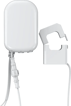
Press the ‘Action’ button on your energy meter. If it has been successfully linked to your network its LED will remain illuminated. If the linking is unsuccessful, your meter’s LED will continue to blink.
MCO Multisensor
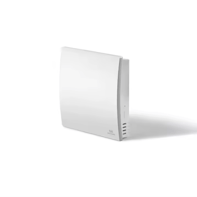 Press the ‘Action’ button three times. If the inclusion is successful, the MultiSensor’s LED will continue to turn on for 8 seconds at a time. If the LED is still in a slow blink, please try to re-start the pairing procedure on the Switchee.
Once the pairing has been completed, select ‘Configure sensor’, this will allow you to set a location. If the sensor is an energy clamp you will be able to set a purpose for this. For example ‘whole-home energy usage’.
This will also be highlighted for users in the dashboard. Once complete, you will be taken to the ‘Manage Sensors’ menu.
Configuring a paired Z-Wave sensor
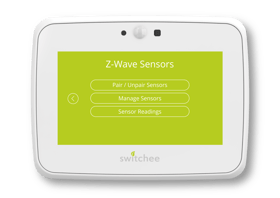 If a Z-wave has been re-located, had it's purpose changed or inputted incorrectly it can be re-configured retrospectively.
To access this menu, you can use the ‘Manage Sensors’ feature on the first page of the Z-Wave sensor menu.
Choosing ‘Manage Sensors’ to see the type of sensor,
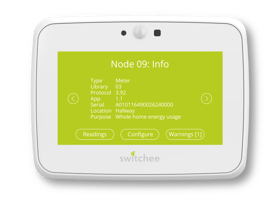 the ID (Library) number, the serial number, the location and purpose.
You will also have three options, for ‘Readings’, ‘Configure’, and ‘Warnings’. Select ‘Configure’, to change and reset the location and/or the purpose of the clamp.
What are the ‘Warnings’, and how do these work?
The Switchee’s latest update now has ‘Warnings’ feature within the Z-Wave menus. This is designed to inform the installer when the Z-Wave device is either installed incorrectly or the data transmitted from the sensor has been corrupted.
This allows the installer to identify any issues with the sensor’s pairing, before leaving the property, and without having to contact Switchee Support to investigate these.
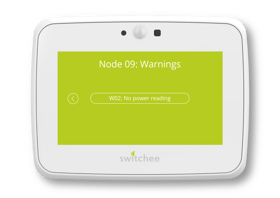 Warnings on a sensor can be checked by going to the ‘Manage Sensor’s’ menu, and the warnings will appear in the bottom right-hand corner. If the sensor has a warning, there will be a small ‘[1]’ next to it to indicate the presence of an issue.
Select the ‘Warnings’ button to view the error, and the specific error code assigned to this.
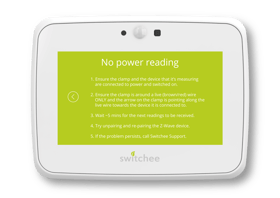 Select the error code on the screen and follow the steps to resolve the issue. You may then need to reset the readings, which will be in the next section.
If you require any assistance please phone Switchee Support on 0800 133 7957.
How to view a paired sensor’s readings?
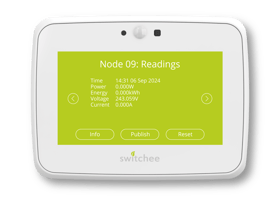 The ‘Readings’ button on the device’s manage Z-Wave sensors menu allows you to see, publish and reset the readings.
This menu provides the sensor’s key information, publishes readings from the sensor immediately to the cloud, and resets the sensor’s readings if there are any issues.
Select the ‘Publish’ button to instruct the device to immediately publish these readings to the cloud, and make them visible remotely from the Switchee dashboard. This may be used when discussing issues with Switchee over the phone, to ensure data is coming through correctly. When publishing readings, you will be told readings are publishing and when complete you will receive a success message.
The ‘Reset’ button is intended to be used to reset the sensors, when installation errors may have occurred or the sensor’s pairing has become corrupted. Typically, this is something that Switchee Support will guide you towards to resolve any installation issues.
There are two ways of accessing this feature. One is to do this individually for each paired sensor, the other is if you need to reset a specific sensor. This can be done by accessing the ‘Manage Sensors’ menu, finding the sensor, and pressing the ‘Reset’ button in the bottom right. You will then receive confirmation this has been reset.
Alternatively, if multiple sensors require resetting you can do a mass Z-Wave sensor reset by going through to ‘Device Reset Options’, at the end of the admin menu. You will find ‘Z-Wave Readings’ reset as the third option, on the first page of ‘Device Reset’.

For more support, contact installer support directly:
Tel: 0800 133 7957 | Email: install@switchee.com