

Overview
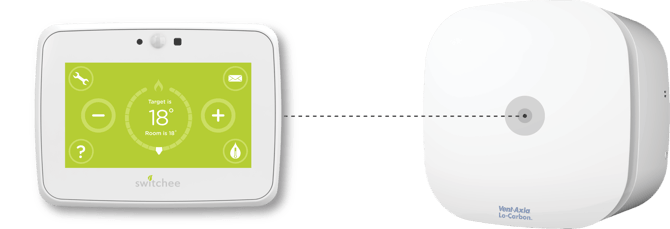
These instructions explain how to pair a Switchee display to a Switchee-enabled Vent-Axia Revive 7 fan, enabling fan data to be viewed remotely in the Switchee platform.
Before attempting to pair, you first need to:
- Install and commission the Switchee-enabled Vent-Axia Revive 7 fan as described in its Installation and Wiring Instructions (see vent-axia.com/range/lo-carbon-revive-7-switchee-enabled).
- Install the Switchee display as described in its Installation Guide (see switchee.com/installer).
 Warning: Risk of electrical shock. Pairing should only be carried out by an electrically competent person.
What you need
- A Switchee display (running firmware v3.4.0 or newer). If your Switchee display firmware is older than 3.4.0 then contact Switchee Support on 0800 133 7957.
- A Switchee-enabled Vent-Axia Revive 7 fan (it must be the “Switchee-enabled” model).
How to pair
Once both the Switchee-enabled Vent-Axia Revive 7 fan and the Switchee display are fully wired in and powered up, you need to pair them to enable wireless communication. No fan data will be sent to the Switchee Portal until pairing is completed.
First you should set the Switchee up for pairing. Second you then set up the Vent-Axia Revive 7.
Set Switchee up for pairing
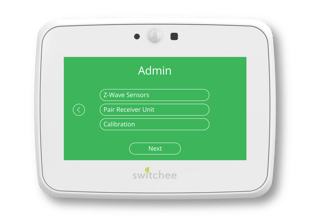
- On the Switchee, press the spanner icon to access Settings.
- Navigate to the Admin sub-menu and enter 0123 when prompted for a PIN.
- Select the Z-Wave Sensors option on the Admin screen.
- Select the Pair / Unpair Sensors option
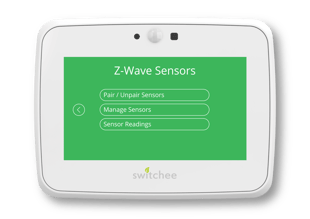
- On the Pair / Unpair Sensors screen, select the Pair new sensor option.
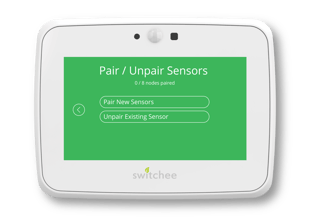
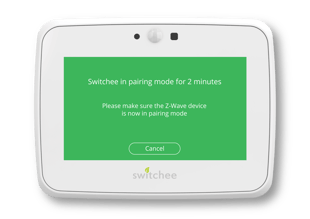
- The Switchee will now enter “pairing mode” for 2 minutes, so head straight over to your Vent-Axia fan to continue pairing.
Pair the Vent-Axia Revive 7 fan
Warning: Risk of electrical shock. Pairing should only be carried out by an electrically competent person.
Accessing the commissioning menu:
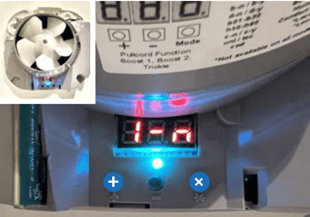
- To pair the fan, first remove the outer casing to expose the control board. It is safest to do this with the fan powered off.
- Once you have removed the case, power the fan back ON. The LED should be blue.
- Hold down the + and x buttons for 5 seconds to enter pairing mode. The LED will begin to flash green.
- NOTE: The Switchee will need to be in pairing mode before you do this, see section (1) above.
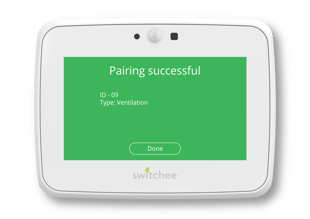
- Upon successful pairing, the fan LED will change from flashing green to solid green
and the Switchee will display a message showing “Pairing successful”.
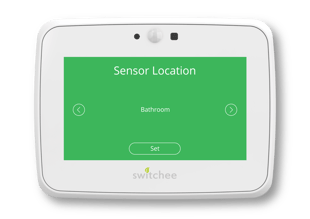
- On the Switchee, press ‘Configure sensor’ and select the room the fan is being installed in using the “>” arrow. Press ‘Set’ when you have the correct location on screen.
- Pairing is now complete.
Viewing fan settings on the Switchee
You can view settings and data from the fan on the Switchee screen to confirm that everything is working correctly.
- On the Switchee, press the spanner icon to access Settings.
- Navigate to the Admin sub-menu and enter 0123 when prompted for a PIN.
- Select the Z-Wave Sensors option on the Admin screen.
- Select Manage Sensors.
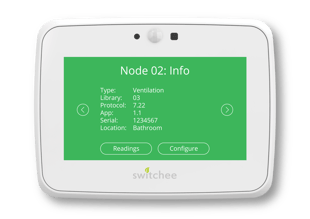
- The Manage Sensors screen includes information about all paired sensors. Use the > arrow to switch between sensors until the fan (ventilation device) is shown.
- The Configure button allows you to update the location of the fan to a new room.
- The Readings button allows you to view the most recent data received from the fan. Its data will be displayed across two pages (use Next and Previous to move between pages).
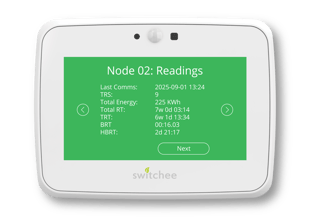

| Last Comms | Timestamp of last reading received by Switchee from the fan |
| TRS | Trickle run speed setting (in l/s) |
| Total Energy | Total energy consumed by the fan (KWh) |
| Total RT | Total run time |
| TRT | Trickle run time (time spent in trickle mode) |
| BRT | Boosted run time (time spent in manual boost mode) |
| HBRT | Humidity Boost run time (time spent in automatic humidity boost mode) |
| 24hr Energy | Energy consumed by the fan in the last 24 hours (KWh) |
| Temperature | Current air temperature (in degrees celsius) |
| Humidity | Current relative humidity |
Unpairing the Switchee & Revive 7 fan
You may wish to unpair a Switchee and fan because one unit or the other is to be replaced or moved to another property, or as a part of trouble-shooting.
Important: Both units must be unpaired before the units can be successfully paired up again. A paired fan will have a solid green status LED below its multi-segment display.
To unpair a fan and Switchee, you first put the Switchee into unpairing mode and then ask the fan to unpair.
Get the Switchee ready to unpair
- On the Switchee, press the spanner icon to access Settings.
- Navigate to the Admin sub-menu and enter 0123 when prompted for a PIN.
- Select the Z-Wave Sensors option on the Admin screen.
- Select the Pair / Unpair Sensors option.
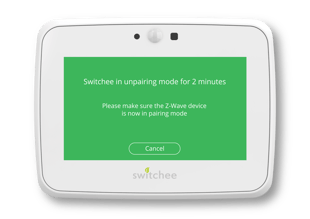
- Select Unpair existing sensor. This will instruct the Switchee to enter “unpairing mode” for 2 minutes.
Now unpair the Vent-Axia fan
- Open up the fan to access the control board as described above, taking note of the warnings. The LED should be green, indicating a paired fan. If the LED is blue, the fan is already unpaired.
- Hold down + the x and buttons on the control board for 5 seconds to enter unpairing mode. The LED will begin to flash green.
- The Switchee will now unpair the fan. Successful completion will be confirmed on the Switchee screen.
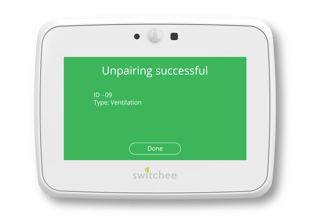
- At this stage the Switchee and the fan will no longer communicate with each other. No further fan data will be reported to the Switchee Portal.
Revive 7 Status LED colours
The LED below the multi-segment display on the Revive 7 control board indicates its pairing state:
| Colour | Meaning |
| Blue / white | Not paired |
| Solid green | Paired to a Switchee |
| Flashing green | In pairing / unpairing mode |
| Red |
The Switchee plug-in board is not responding Fixing: Try turning power to fan off and then on again and confirm that the Switchee (Z-Wave) board is firmly plugged into the fan. If the red light persists, the Switchee board may need to be replaced. |
For more support, contact our installer support team directly on:
Tel: 0800 133 7957 | Email: install@switchee.com