
If a Switchee has been diagnosed as faulty by our support team, it is likely the device will need to be replaced. This article aims to detail that process to ensure that the property continues to report data and function with the heating system.
Completing a Switchee swap has two parts to it - the front end & the back end. The front end of this process is the physical swap, replacing the faulty equipment and ensuring this provides adequate control of the heating and hot water for the resident. Completing the back end of the process ensures the client is still able to see the new device on our Client Dashboard. In order to ensure the resident is satisfied with the work, we must also ensure that the device is set up to function in the same way as previously. This should include checking any schedules on the device, checking if there are any paired Z-Wave sensors, and whether the device was paired to the smartphone app.
Checklist for completing a swap:
- Contact Switchee Support for a warranty swap code (if you haven’t been provided one already).
- Check for paired Z-Wave Sensors (e.g., Energy clamps or CO2 sensors).
- Check for currently active heating or hot water profiles.
- Isolate power to Switchee equipment.
- Swap display unit/full kit as required.
- Reinstate power to Switchee equipment.
- Re-pair receiver unit with new head unit [if applicable].
- Re-pair Z-Wave sensors [if applicable].
- Re-set heating or hot water profiles [if applicable].
- Contact Switchee Support to register new device.
Checking for paired Z-Wave Sensors
To ensure the data collection from the device is complete, we need to ensure that we can get any Z-Wave devices re-paired to the device as possible.
To check this, please press: Settings > Next x2 > Admin > Passcode: 0123
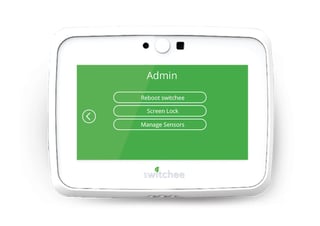 This will gain you access to the admin menu, where you will find ‘Manage Sensors’. Inside this menu, it will give you the option to ‘Pair’ or ‘Remove’. To check for current paired sensors, press the arrow pointing to the right to scroll through.
Any paired sensor should have a location attached to them, and also have a non-zero ID - e.g., the first paired sensor will be ID:001.
Once you have noted how many devices are paired, please use the ‘Remove’ feature to de pair these. When this is pressed, the Switchee will enter exclusion mode, allowing for the Z-Wave devices to be removed via their pairing feature. By pressing the F1 button on the CO2/Multi sensor, or by pressing the button on the back of the Energy Meter, this will cause the device to remove itself from the Switchee. Only one can be done at a time, so if there are multiple paired sensors you will need to remove these one by one.
Checking for currently active heating or hot water profiles
It’s important to make sure that we set up the same profile as was running on the resident’s old device so we can ensure the resident is satisfied with the heating. Profiles can be created, edited, viewed and deleted from within the programmer feature.
To access the programmer, please press:
Spanner > Programmer > Heating/Hot water 
You would then be presented with three options: Set/Edit, View, and Delete heating/hot water profile. To view what profile was previously running on the Switchee, press ‘View heating profile’ and select a day along the top of the screen to view the profile settings for that day specifically. Typically, profiles will be set up to run the same settings every day, but it is worth checking the rest of the week in case that isn’t the case.
Isolating power to the Switchee equipment
To isolate the power from the Switchee equipment, please use the fused spur at the boiler to disable the power.
In the instance the display unit does not turn off when doing this, please look for a PSU that may be plugged into a wall socket.
Full kit swaps
When swapping the full kit, we need to first of all remove the faulty devices, which can be done by unscrewing the front of the receiver unit to detach the PCB from its wall bracket, and unfastening the grub screw on the bottom of the thermostat display to unsecure it from the display’s bracket.
Once removed, we can then replace the faulty device with the replacement units. As we are replacing the full kit, we do not need to pair the devices with wireless communication, as this will be pre-paired in the factory before dispatch. Any two devices in the same box will already be paired.
You should then test the equipment to make sure that calls-for-heat and calls-for-water on the Switchee display correspond to the boiler firing.
Singular unit swap
When swapping the receiver unit only or the display unit only, we need to first of all remove the faulty device, which can be done by unscrewing the front of the receiver unit to detach the PCB from its wall bracket, or by undoing the grub screw on the bottom of the thermostat display to unsecure it from the display’s bracket.
Once removed, we can then replace the faulty device with the replacement unit.
When swapping only one part of the kit, we must ensure that the new device communicates with the original device. If this is a wired system, it will be as simple as popping the terminal blocks back into the new receiver unit, be obvious, as in the bracket there would be a 4-core cable (3-core with a heat-only system), specifically making use of the H1 & W2 (heating/hot water) connections.
Wireless pairing
If the device is communicating calls-for-heat and calls-for-water wirelessly, to pair the head unit and receiver unit can be achieved by accessing the Admin menu in the Switchee device by tapping:
Spanner > Next x2 > Admin > Passcode: 0123
This will grant you access to the Admin menu. Next, navigate to the ‘Pair Receiver Unit’ option. If the device has previously been paired with a Receiver Unit, please choose the option to ‘Reset Pair’ to delete this previous pairing.
Once the pairing page has been loaded, you should activate the Receiver Unit for pairing. To do this, hold the Override button on the front of the receiver unit for 5 seconds.
The green LED above the wireless signal symbol will begin to flash slowly, indicating the receiver unit is now ready for pairing.
Finally, return to the thermostat display, and press ‘Pair’. This will then search for the Receiver Unit you have just activated for pairing, and within a few seconds the device should read a message to say, ‘Paired Successfully’.
Pairing Z-Wave sensors
When the new device has been fitted, please make your way back to the menu above and press ‘Pair’. This will cause the device to enter inclusion mode, which allows you to pair the sensors. When in inclusion mode, press the F1 button on the CO2/Multi Sensor or the button on the back of the Energy Meter to pair the device back to the Switchee. Only one can be done at a time, so if there are multiple sensors to be paired these must be done one by one.
Recreating heating/hot water profiles
In order to re-create a schedule on the device, you can use the menu option of ‘Set/Edit heating profile’ to make these settings.
When the programmer is opened, the first thing you should do is tap along the top of the screen on the days of the week you’d like the settings to apply to. If you want to make different settings for different days, then you can do this by only highlighting specific days at once, and then doing the rest separately.
Once the days of the week have been highlighted, you can begin to make your period of the day in ON1. Once ON1 has been pressed and highlighted, then writing will appear in the middle of the screen, allowing you to change the time that this temperature change will occur at, as well as being able to set the time this occurs underneath.
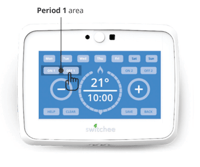 Once the resident is happy with the temperature setting at the specifically set time, press ‘Save’ in the bottom right corner, and this will save your ON1 period, and move you onto the next period, OFF1. This can be repeated up to 4 times on the programmer to allow for 4 times a day when the temperature setting of the thermostat will change, and 4 times a day when the hot water can be turned on or off.
Contact Switchee Support to register new device
When you have swapped the device, it must be re-registered. This process can be done by phoning 0800 133 7957 (dial 2) for installer support or emailing support@switchee.co, who will be able to register the new device in place of the old, faulty device. For this to work, we need the following details:
- Address and postcode of property
- New Switchee serial number
The new serial number can typically be found in 3 locations: on the box, on the front (screen protector) and on the back (hiding behind bracket, above pins)
Once you have passed along the above information, Switchee will be able to issue you a returns authorisation code, in the format of GR-123. We may ask for some extra details, including a description of the fault, which helps us to triage the device on receiving the device back at our office.
N.B. Please ensure that this GR code is written on the front of the box which contains the faulty device when you return this to a merchant/your depot. This will help for visibility on what devices are being returned, but also means the merchant/line manager you return the device to for collection can confirm this has been authorised by us.
For more support, contact installer support directly:
Tel: 0800 133 7957 | Email: install@switchee.com