
If your Switchee Resident app is not working and your thermostat displays PLEASE WAIT where you would normally see an IMEI number, this indicates a device connectivity or registration issue.
Don’t worry - this issue does not usually affect your heating or hot water, which should continue to work as normal.
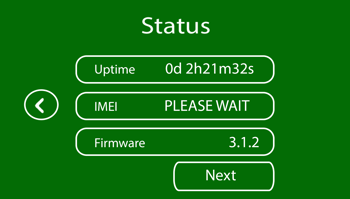
Step 1: Find your device’s IMEI number
The IMEI (International Mobile Equipment Identity) is the unique registration number for your smart thermostat.
- Wake the screen: Touch your Switchee screen to activate it.
- Go to settings: Tap the spanner (wrench) icon in the top-left corner of the screen.
- Check the date/time: Under the settings menu, look to see if the date and time shown are correct.
- Check status: Tap the status button.
- Look for the IMEI: On the status screen, look for the row that says IMEI.
- If you see a long number here, please write it down.
- If it displays PLEASE WAIT or is blank: This confirms you need to use the form below to report your device. This issue means the IMEI number is still being retrieved and it cannot retrieve it.
Step 2: Contact support
Once you have confirmed that your device is displaying PLEASE WAIT or you have found your IMEI number, please reach out to the Switchee resident support team for more assistance. Tel: 0800 133 7957 | Email: support@switchee.com